ClickUp markets itself as an “everything app,” built to replace separate tools for tasks, docs, chat, and reporting with one product. This review covers what that actually means in practice: how work is structured, which capabilities sit on which plan, what AI costs as a separate add-on, and what a real team would pay. It uses only ClickUp’s own published pricing, product, security, and developer documentation, dated throughout.
The short verdict
ClickUp’s core pitch is breadth. Tasks, Docs, Whiteboards, Chat, Dashboards, and more than a dozen work views all live inside one product, and a large share of that breadth is available even on the free Free Forever plan. That is a genuine strength for a team that wants to stop paying for several separate tools. It is also the source of ClickUp’s biggest early cost: a new team has to learn a five-level structure, Workspace, Space, Folder, List, and task, before any of that breadth becomes useful rather than overwhelming.
Unlike some competitors, ClickUp states no minimum paid-seat count anywhere on its pricing page. That helps a very small team budget precisely. Artificial intelligence, however, is priced as a separate per-user subscription on top of a paid plan, at $9 or $28 a month, rather than bundled into a plan’s base price. A buyer comparing ClickUp’s sticker price against a competitor’s AI-inclusive plan needs to add that cost back in first, or the comparison will not be fair.
| Type | Team profile | Why |
|---|---|---|
| Best fit | A team that wants tasks, docs, chat, and dashboards in one product instead of several separate subscriptions | ClickUp’s features overview confirms all of these as native parts of one platform, not bolt-on integrations |
| Best fit | A very small team that wants to avoid a seat-bucket minimum | ClickUp’s pricing page states no minimum paid-seat count, unlike monday.com’s confirmed 3-seat floor |
| Best fit | A team that wants automation and Whiteboards on a genuinely usable free plan | Free Forever includes 5 automation rules, 3 Whiteboards, and unlimited tasks at no cost |
| Poor fit | A team that wants unlimited dashboards without paying for Business | Dashboards stay marked “Trial” through the Unlimited plan and only become unlimited on Business |
| Poor fit | A team that wants AI bundled into its per-seat price | Brain AI and Everything AI are separate $9 or $28 per-user add-ons, not included in any core plan |
| Poor fit | A buyer that needs a fully documented guest-permission model before committing | ClickUp’s help center, the most likely source for that detail, is not accessible to this article’s automated checks |
Who should use ClickUp, and who should avoid it
ClickUp fits a team that wants one product to cover project tracking, internal documentation, team chat, and reporting, rather than stitching those together from several separate apps. ClickUp’s features overview confirms Docs, Whiteboards, Chat, Forms, Dashboards, and more than a dozen work views as native parts of the same product a task already lives in. A team that has outgrown a single-purpose task tool, and is tired of copying information between that tool and a separate chat app or document tool, is exactly the buyer ClickUp is built for.
It also suits a team that wants real functionality on a free plan before committing any budget. ClickUp’s pricing page confirms Free Forever includes unlimited tasks, 5 Spaces, 3 Whiteboards, and 5 active automation rules with 100 executions a month, at no cost. A very small team, or a team piloting the product before a wider rollout, can test real workflows without a credit card. monday.com requires a confirmed 3-seat minimum on every paid plan. ClickUp’s pricing page states no minimum seat count at all, which helps a two- or three-person team budget an exact price instead of guessing at bucket rounding.
A team that wants a simple, narrow tool should look elsewhere. ClickUp’s breadth is also its main early cost. A new team has to learn Workspaces, Spaces, Folders, and Lists before it can use the product effectively, a heavier setup investment than a flatter task-list tool requires. A team that wants unlimited dashboards without paying for the Business plan will also be disappointed; dashboards stay marked as a limited “Trial” feature through the entire Unlimited plan, one tier below Business. A buyer who assumes ClickUp’s low headline price already includes its AI features should also look closely at the numbers first. Brain AI and Everything AI are priced separately, at $9 or $28 per user a month, on top of whichever core plan the team already pays for, a different structure from monday.com, which bundles a fixed AI allowance into every paid tier at no extra line item.
Finally, a buyer that needs a fully documented guest-permission model, or a confirmed answer about a bulk account export, before signing a contract should budget time for a direct conversation with ClickUp’s sales team. The help-center articles that would normally answer those questions in detail are blocked to automated access, so this article states them as unconfirmed rather than guessing in either direction.
How ClickUp organizes work: Workspaces, Spaces, Folders, Lists, and tasks
ClickUp nests work through five named levels, though not every level is required for every List. ClickUp’s developer documentation defines them precisely. A Workspace is “the top level of organization in ClickUp, encompassing all users, Spaces, and content.” A Space is “a container for related Folders and Lists, often representing departments, projects, or areas of work.” A Folder is explicitly “an optional level within a Space, used to further organize Lists,” and a List, in turn, is “a container for tasks, residing within a Space and optionally within a Folder.” In practice, a team can put a List directly inside a Space and skip the Folder level entirely for simpler work. It only needs to add Folders where a Space genuinely needs another layer of grouping. A task is “an actionable item within a List,” and it can itself be broken into subtasks, defined as components of a “Parent Task” that can nest further as “Nested Subtasks.” ClickUp’s features overview separately confirms subtasks can nest “up to 7 levels” deep, letting a single task expand into a detailed checklist of smaller pieces of work without creating a second List. That same features page also lists a newer, beta-labeled “Subfolders” capability, adding one more optional layer of hierarchy inside a Space beyond the base Workspace-Space-Folder-List-Task-Subtask model described above.
That five-level structure is also where ClickUp’s plan limits actually bite. ClickUp’s pricing page caps Free Forever at 5 Spaces, 40 Lists per Space, and 100 folders per Space. Unlimited raises those Space-level caps sharply, to 200 Lists and 200 folders per Space, and removes the 5-Space ceiling entirely. Business raises the folder cap again, to 400 per Space, and Enterprise removes the folder cap and raises the List cap to 1,000 per Space. A team planning a large rollout, many departments, each with several Folders and Lists, should model these per-Space ceilings against its actual org chart before assuming Free Forever or Unlimited will scale far enough.
This article could not confirm one structural detail from any accessible ClickUp source. It is not clear whether a custom status or a custom field defined at the List level can be shared by other Lists in the same Folder or Space. It might instead need to be recreated separately on each List. ClickUp’s custom fields feature page describes fields as belonging to “each project,” without stating that scope precisely, and the help-center article most likely to answer this returned an access error during this review. A team planning a large, standardized rollout across many teams should confirm this scoping detail directly with ClickUp before assuming fields defined once will automatically appear everywhere they are needed.
Statuses, custom fields, and task relationships
A task’s actual behavior comes from three mechanics layered on top of the basic Workspace-Space-Folder-List-task structure: its status, its custom fields, and its relationships to other tasks. ClickUp’s custom task statuses feature page describes two status models. A Simple Status is a basic to-do-or-done model for straightforward work. A Custom Status lets a team define its own named workflow stages, such as “In progress” or “In review.” The page confirms a Board view automatically creates one column for every distinct status value present in the data it displays. Almost any real team workflow needs the custom version, since a strict two-state model rarely matches how work actually moves through review and approval steps.
Custom fields add structured data beyond a task’s built-in name, assignee, and due date. ClickUp’s custom fields feature page confirms dropdown, numeric, contact, and estimation-style field types. A numeric custom field can calculate a formula-style result from another numeric field on the same task, useful for something like multiplying a quantity by a unit cost. The pricing page marks Custom Fields as a limited “Trial” capability on Free Forever and “Advanced” on every paid plan, without stating the exact difference between those two levels beyond the label itself.
Task relationships connect one task to another. ClickUp’s dependencies feature page confirms two relationship types. A “blocking” dependency means one task must finish before a linked task can start. A “waiting on” dependency is the same relationship viewed from the other task’s side. The page also confirms a “Rollups” display that condenses the number and category of a task’s relationships, including dependencies, into a simple table a person can scan without opening every linked task individually. No accessible ClickUp source states a maximum number of dependencies a single task can carry, or how a Gantt view visually flags a scheduling conflict created by one.
Illustration, not a hands-on finding. Consider a software team running a two-week sprint inside one List. Each task carries a Custom Status moving through “Backlog,” “In progress,” “In review,” and “Done,” matching the team’s actual review process rather than a generic two-state model. A numeric custom field holds each task’s story-point estimate, so the team can total effort across the List at a glance. A “blocking” dependency ties a database-migration task to the three feature tasks that need it finished first, so nobody accidentally starts building against a schema that has not shipped yet. This description is built from ClickUp’s own documented status, field, and dependency mechanics; it is not a sprint this article ran and observed.
A normal week: creating, assigning, and updating work
Day to day, someone adds a new task to a List and gives it a name. They fill in whatever the team’s workflow needs: an assignee, a due date, a status, and any custom fields the List has defined. ClickUp’s tasks feature page confirms a task can carry more than one assignee at once. ClickUp’s multiple assignees feature page frames it as “Multiple Assignees, when you need them,” a setting a team can customize “to avoid having multiple assignees when they aren’t needed,” rather than a permanent default. That setting is controlled per List or project, so a team can require single ownership on sensitive work and allow shared ownership elsewhere in the same Workspace.
As work progresses, the person doing it, or whoever is watching the List, updates the task’s status. That single change is what actually moves a card between columns on a Board view, the same mechanic that drives a Kanban-style stand-up. Checklists, confirmed on the tasks feature page as a way to “break big work into trackable, manageable pieces,” let a person track smaller steps inside one task. That skips creating a full subtask for each step, which suits a short list of items that does not need its own owner or due date.
A subtask, by contrast, is a full task in its own right, nested under a parent. It carries its own assignee, status, and custom fields, the same way a top-level task does. ClickUp’s features overview confirms subtasks can nest up to 7 levels deep. Choosing between a checklist item and a subtask really means judging how much structure a smaller piece of work needs. A simple, unowned step fits a checklist item. A step that needs its own owner, due date, or custom field values fits a subtask instead.
Views: many ways to look at the same work
A view is a different way of displaying the same underlying tasks, and ClickUp names more of them than most competitors in this category. ClickUp’s views feature page lists List, Board, Calendar, Gantt, Table, Timeline, Workload, Box, Activity, Mind Map, and Map, alongside Docs, Chat, Whiteboards, Forms, and Embed as page-style views that sit inside the same navigation. A List view supports “flexible sorting, filtering, and grouping” for a straightforward work queue. A Board view displays the same tasks as kanban-style cards grouped by status. A Table view adds spreadsheet-style bulk editing across many tasks at once. A Gantt view lays out tasks and their dependencies across a timeline, useful for a manager planning a multi-week schedule rather than tracking day-to-day status changes.
A Workload view is the one most directly aimed at capacity planning. The views page describes it under the heading “Visualize team bandwidth.” It lets a team “set and track workload capacities” to see who is under or over capacity. This article could not confirm Workload’s full mechanics from a dedicated feature page; two guessed page paths for one both returned an access error during this review. What is confirmed is that Workload exists as a named view. A changelog entry dated April 2026 (id: clickup-changelog) describes a Workload update that lets a manager add a second layer of grouping, breaking capacity down by team, project, or department, and then by assignee. This article treats that as evidence the capability is actively maintained, without claiming to describe every detail of how it works.
A Map view suits a team coordinating field visits or other location-based work. A Mind Map view suits planning a project’s structure visually before tasks exist. No accessible ClickUp page checked in this review states a plan-tier restriction tied to any specific view name. This article does not claim any one view is unavailable at a particular plan, beyond the general Free Forever “Trial” labels the pricing page applies to related capabilities like Gantt charts.
Collaboration: Chat, comments, and notifications
ClickUp folds team messaging directly into the same product as its task data, rather than treating chat as a separate integration. ClickUp’s Chat feature page confirms channels, direct messages, threads, and “Posts” for announcements, plus a setting to organize channels into Spaces, mirroring the same Space concept used for tasks. A message can be converted into a task with one click. A “Sync Threads to Tasks” mechanic keeps a task’s own comment thread and a related chat conversation aligned, so a decision made in chat does not have to be retyped onto the task separately.
The page states plainly that “ClickUp Chat is free for now. Certain restrictions may apply later.” This article treats that as a present-tense pricing status, not a permanent guarantee. A team relying heavily on Chat today should watch ClickUp’s changelog for a future pricing change, rather than assume the current free status is locked in.
Comments attached directly to a task work alongside Chat rather than replacing it. ClickUp’s features overview confirms an “assign comments” capability that turns a specific piece of feedback into an action item assigned to a teammate, distinct from a general chat message. Notifications tie both mechanisms together. No accessible ClickUp source checked in this review describes notification delivery mechanics in the same detail its pricing and feature pages describe other capabilities. It is unclear, for example, whether a mention inside a comment always generates a separate alert beyond the comment’s own notification. That narrower question is recorded here as unconfirmed rather than assumed.
Docs, Whiteboards, and Forms: documentation and intake
Three separate tools cover documentation and structured intake, and each solves a different problem. ClickUp’s Docs feature page confirms a Doc can link directly to the task or project it describes, and supports nested subpages for a longer wiki or specification. It also allows real-time multi-editor collaboration with live cursors and inline comments. A comment inside a Doc can be converted into a task with one click, the same pattern Chat uses. Version history tracks every change and allows a rollback to any earlier state, and per-document permissions control exactly who can view, comment, or edit a specific Doc.
ClickUp’s Whiteboards feature page describes a different kind of documentation: a visual canvas rather than a linear page. Its “Shapes to Tasks” mechanic converts a shape drawn on the board directly into a task with an assignee and due date, editable from a sidebar without leaving the canvas. Whiteboards is confirmed “included on the Free Forever plan with generous limits,” with paid plans adding unlimited boards; the exact Free Forever limit, 3 Whiteboards, comes from the pricing page rather than this feature page.
ClickUp’s Forms feature page handles structured intake from someone outside the immediate workflow, such as a client request or an internal IT ticket. Every submission becomes a new task in a List the form’s owner chose in advance, with assignee, priority, and custom-field values already filled in from the submitted answers, skipping a manual re-entry step. Conditional logic shows or hides later questions based on an earlier answer, so different kinds of requesters see only the fields relevant to their specific request.
| Capability | What it is for | Notable limit or gap |
|---|---|---|
| Docs | Linear documents, wikis, and specs linked to tasks | Free Forever includes 1 Wiki; per-plan Doc count beyond that is not stated |
| Whiteboards | Visual planning that can convert shapes directly into tasks | Free Forever includes 3 boards; paid plans add unlimited boards |
| Forms | Structured external intake that creates a task automatically | Free Forever includes 1 Form; conditional logic and AI review are confirmed but not tied to a specific plan |
Goals and Portfolios: tracking progress across tasks and projects
Two features answer the question of how a team sees progress above the level of a single task. ClickUp’s Goals feature page describes a “Task Target,” which links a goal to a set of tasks. Progress tracks automatically as those linked tasks are completed. A separate “Numerical Target” covers an objective measured by a count rather than task completion, such as reaching a specific number of published articles in a quarter. Goals can be grouped into a folder, for example by sprint cycle or as a set of company OKRs, with an aggregate progress percentage shown across the whole folder.
ClickUp’s Portfolios feature page addresses a related but different question: seeing status across many Lists, Folders, or Spaces at once, rather than tracking progress toward one specific numeric or task-based target. The page describes three functions: measuring progress across whatever grouping a team chooses, organizing priorities against company strategy, and sharing a permission-scoped view of that portfolio with outside stakeholders. Those stakeholders should not necessarily see every underlying task. Neither this page nor the pricing page states a plan-tier restriction specific to Portfolios, so this article does not claim one exists.
The practical difference for a buyer: Goals answer “are we on track toward this specific target,” while Portfolios answer “what is the state of everything happening across these projects.” A team could use both together for one campaign. A Goal would track a specific numeric target. A Portfolio would show every active campaign’s Lists side by side in one view.
Automations: triggers, recipes, and monthly execution limits
ClickUp’s automation engine pairs a trigger with an action, the same basic pattern used across this category. ClickUp’s Automations feature page confirms “100+ Automations” a team can select and turn on directly, covering common actions like reassigning a task, posting a comment, or changing a status automatically. An AI Automation Builder accepts a plain-English description of a workflow. It then generates a matching trigger-and-action pair for a chosen Space, Folder, or List, editable before it is turned on. AI custom fields can also auto-populate with a generated task summary or a sentiment analysis pulled from a task’s own activity.
That convenience is capped by a monthly execution allowance that scales steeply by plan, the same pattern this site has already documented for monday.com’s automation actions.
| Plan | Active automation rules | Automation executions per month |
|---|---|---|
| Free Forever | 5 | 100 |
| Unlimited | 500 | 1,000 |
| Business | Unlimited | 5,000 |
| Enterprise | Unlimited | 250,000 |
A team running more than a handful of active recipes on Free Forever or Unlimited will exhaust its monthly execution allowance quickly. Every time a trigger fires, it counts against the total, regardless of which rule fired it. Business’s 5,000-execution allowance is the realistic floor for sustained, active automation across a whole team, not just a single List.
Illustration, not a hands-on finding. A marketing team could run a campaign List where a status change to “Ready for review” automatically reassigns the task to an editor and posts a comment tagging the campaign’s Goal folder for visibility. When a task later moves to “Published,” a second rule could update a Numerical Target counting published pieces for the month, so the campaign’s overall progress reflects real output without a manual weekly tally. Each of those triggered actions counts once against the plan’s monthly automation-execution allowance. This is a description of how documented triggers and actions could be assembled, not a workflow this article configured and ran.
Dashboards: reporting across a workspace
A dashboard pulls live data from across a Workspace onto one screen. ClickUp’s Dashboards feature page states “60+ cards for every team,” mixing charts, tables, Workload-view data, and time-tracking totals on one resizable, rearrangeable canvas. The page emphasizes that a dashboard reads live data rather than a cached snapshot: “the dashboard stays in sync because it IS the work.” It also confirms a user can change a task’s status, reassign its owner, or edit a field directly from a dashboard card, without opening the underlying task.
That reporting power is gated more tightly than most of ClickUp’s other capabilities. ClickUp’s pricing page marks Dashboards as a limited “Trial” feature on both Free Forever and Unlimited, and only Business and Enterprise get the unlimited version the feature page describes. A team evaluating ClickUp on Unlimited should not assume it has already tested Dashboards at the level a paying Business customer would actually get. Neither this feature page nor the pricing page states whether a single dashboard can pull data from more than one Workspace at once. Both confirm only that it can combine data across Spaces, Folders, and Lists within one Workspace. This article records the cross-Workspace question as unconfirmed.
Time tracking and workload: hours, timesheets, and capacity
Native time tracking and the Workload view answer two related but different questions: how long did work actually take, and how much work does a person currently have assigned. ClickUp’s time tracking feature page confirms a timer can start from any task or a global toolbar, and can be started on desktop and stopped from the mobile app, with the logged time syncing automatically. Time can also be entered manually for offline work such as a client call. Any time entry can be flagged billable the moment it is logged, with an hourly rate configurable by team member, task, or project. Report totals can be pulled by project, person, or date range without a separate export step.
A timesheet-approval workflow sits on top of that raw time data. A contributor submits a weekly timesheet, and a manager reviews it and approves or rejects it. An approved timesheet locks for downstream billing or payroll. The time-tracking feature page’s own call-to-action button reads “Free forever,” the same generic phrase every ClickUp feature page uses, so this article does not treat it as a plan-specific claim. ClickUp’s pricing page is the more specific source: it marks time tracking as a limited “Trial” capability on Free Forever and “Native,” meaning fully unlocked, only from Unlimited upward. This article treats the pricing page’s plan-scoped table as the controlling source for exactly which plan removes that limitation.
Workload, by contrast, is about looking forward rather than reconciling the past. ClickUp’s views feature page promises to “visualize team bandwidth” so a team can “set and track workload capacities,” letting a manager see how much work is currently assigned to each person before adding more. This article could not confirm Workload’s detailed mechanics from a dedicated feature page, since two guessed page paths for one both returned an access error. What is confirmed is that the view exists. ClickUp’s own changelog documents an April 2026 update that added a second grouping layer to Workload, breaking capacity down by team, project, or department, and then by assignee. That is evidence of active investment, without a full mechanics description to cite.
Illustration, not a hands-on finding. A client-services agency running three active client Lists inside one Folder could ask each consultant to log time against tasks by client. Every entry would be flagged billable, with an hourly rate set per client. At the end of a week, a manager could review each person’s submitted timesheet and approve it. The manager could then check the Workload view before assigning next week’s client work, to see who already has a full week booked rather than guessing from memory. This description is built from ClickUp’s own documented time-tracking and Workload mechanics; it is not a billing cycle this article actually ran and observed.
Integrations, the API, and data portability
ClickUp’s integrations page states ClickUp connects “over 1,000+ tools” for free. Native integrations, built by ClickUp itself, name at least 28 directly, including Slack, GitHub, Zapier, Google Drive, Microsoft Teams, and Zoom. Third-party integrations, built by other companies, name more than 40, including Salesforce, Airtable, and OpenAI. Custom integrations can also be built on ClickUp’s own API. No plan-tier restriction on integration access is stated on this page, though the pricing page separately marks Integrations as “Trial” on Free Forever and “Unlimited” on every paid plan.
On the developer side, ClickUp’s developer documentation confirms two authentication methods. A personal API token, prefixed pk_ and stated to never expire, suits individual or testing use. An OAuth 2.0 authorization-code flow is recommended for an application serving multiple users. This authentication page does not itself describe what data the API can read or write. API rate limits, confirmed separately on the pricing page, stay at 100 calls a minute on every plan through Business. Enterprise jumps to 10,000 calls a minute, a 100-times increase at the top tier.
Migration risk runs in both directions, and the evidence is stronger for moving data in than moving it back out. ClickUp’s import page confirms one-click import from Asana, monday.com, Trello, Jira, Confluence, Notion, Todoist, Basecamp, and Wrike, plus a general CSV or Excel import, completing “in less than 60 seconds” at no cost. Import mapping is reasonably specific. An Asana project, for example, maps to a new or existing Folder or Space, and a Jira issue type converts into its own separate ClickUp List. No accessible ClickUp page, including the developer documentation, describes a documented bulk export or full-account backup feature in the other direction. This is recorded as not found, not as evidence such a feature does not exist, since the help-center articles most likely to describe an export workflow are blocked to automated access. This site’s monday.com review already applies the same treatment to a similar gap in monday’s own public materials.
| Import source | What it maps to |
|---|---|
| Asana | Projects become a new or existing Folder or Space |
| monday.com | Boards convert to a Folder or Space |
| Trello | A board becomes a Space or Folder |
| Jira | Issue types convert into separate Lists, with attachments preserved |
| Confluence or Notion | A knowledge base migrates in and becomes searchable |
| Todoist, Basecamp, or Wrike | Projects or to-do items map into the Workspace |
| CSV or Excel | Any column count or order imports directly |
Administration, permissions, and guests
ClickUp’s developer documentation defines four built-in Workspace roles precisely, in descending order of authority. An Owner is “the highest authority within a Workspace,” responsible for creating it, managing billing and ownership, and able to delete the entire Workspace. An Admin is “second-highest authority,” able to manage integrations, imports, exports, billing, member additions, and Workspace settings. A Member has “full access to all public items within the Workspace,” including creating tasks, views, Lists, Folders, Spaces, and Dashboards. A Guest has “limited access to specific items shared with them,” cannot see or join Spaces, cannot create items, and cannot see every Workspace member or manage settings. What the pricing page confirms precisely on top of those four roles is guest seat math, which scales by plan rather than following one flat number for every tier.
| Plan | Full-access guest seats included | Additional full-access guest seats |
|---|---|---|
| Free Forever | Unlimited guests with full create-and-edit access | Not applicable |
| Unlimited | 5, for the first paid user | 2 more per additional paid user |
| Business | 10, for the first paid user | 5 more per additional paid user |
| Enterprise | Same as Business | Plus unspecified “advanced permissions options” for guests |
Those counted seats are not the only way to add outside people on a paid plan. ClickUp’s pricing page states that a paid Workspace also gets “unlimited read-only guests” on top of its limited number of full-access guest seats. A team can loop in as many outside viewers as it wants at no extra cost. The counted seats above apply only to a guest who needs to create or edit something, not merely view it.
Free Forever’s guest behavior is unusual in this category: every guest gets full create-and-edit access by default, with no separate, lower-privilege guest role stated on the pricing page. That can be convenient for a very small team collaborating loosely with outside contacts, and a governance concern for one that needs to restrict what an external guest can change. On paid plans, Enterprise adds “Custom Roles” and “SAML SSO & SCIM Provisioning” as named, Enterprise-only capabilities. That lets an admin define a permission set beyond the four built-in roles above and automate account provisioning through an identity provider. The same developer documentation separately names “Granular Space Permissions” as an Enterprise-only capability too, letting an admin set custom permissions for individual users or teams when sharing a Space. Google SSO itself starts one tier lower, on Business. Free Forever and Unlimited do not offer it at all, confirmed on both the pricing page’s feature comparison and the security page’s own “Business” label for that capability.
This article could not confirm every detail beneath that four-role structure, such as whether a Member’s access to a specific Space, Folder, or List can be individually restricted below Enterprise’s Granular Space Permissions. The help-center articles most likely to document that in full are blocked to automated access. A company with a hard requirement to document its exact permission model before signing a contract should confirm the specifics directly with ClickUp, rather than relying on this article’s necessarily incomplete picture of it.
Security certifications and compliance claims
A security certification and a compliance claim answer different questions, and this article keeps them separate rather than listing both as one undifferentiated trust signal. A certification means an independent auditor checked the company and issued a report. A compliance claim is the company’s own statement that it follows a given law.
ClickUp’s security page lists a set of independently audited certifications: SOC 1 Type 2, SOC 2 Type 2, and SOC 3, described as “independently audited at least annually.” It also lists the ISO/IEC 27001:2022, 27017:2015, 27018:2019, and 27701:2019 family. A further certification, ISO 42001, is described as a “new global standard for Artificial Intelligence Management Systems,” and the page claims ClickUp is “among the first platforms to achieve” it. Separately, and not the same kind of claim, the page states GDPR compliance, HIPAA compliance, and ongoing PCI compliance for handling payment-card data.
On technical controls, the page confirms TLS 1.2 encryption for data in transit and AES-256 encryption for data at rest. Hosting runs on AWS infrastructure available in the United States, Europe, and Asia-Pacific, and Enterprise customers can choose their hosting region at no extra cost. Two-factor authentication is available broadly, and Google SSO is confirmed for Business-tier accounts specifically, matching the pricing page. The page states ClickUp “actively monitors ongoing security, performance and availability 24/7/365,” including third-party penetration testing, and notes that “ClickUp permissions extend to ClickUp’s AI features,” without itemizing exactly which permission controls that statement covers. A buyer with a hard compliance requirement, particularly around a specific AI-feature permission boundary, should confirm the specifics directly with ClickUp rather than treating that one sentence as a complete answer.
AI: ClickUp Brain, Super Agents, and AI Super Credits
ClickUp sells its AI capabilities as a separate subscription layered on top of a paid plan, rather than a fixed allowance bundled into the plan price itself. ClickUp’s Brain feature page describes Brain as an AI layer connected to a Workspace’s tasks, Docs, Chat, and calendar. It offers shared-context AI conversations, topic-scoped “AI Channels,” and access to more than one third-party AI model inside one subscription, naming ChatGPT, Claude, and Gemini among them. “Super Agents” are described as a more autonomous layer, able to carry out a domain-specific job, such as building a slide deck or running a data analysis, rather than only answering a question.
ClickUp’s pricing page confirms two AI tiers. Brain AI costs $9 per user a month and includes unlimited day-to-day Brain conversations plus 1,500 AI Super Credits per user a month. Everything AI costs $28 per user a month and adds unlimited Ambient Answers, an AI Notetaker, and image generation, plus 5,000 credits per user a month. Ordinary Brain conversations do not consume AI Super Credits. Credits are spent instead by Super Agents, AI-driven automations, and AI-generated custom fields. A team that wants basic AI chat and summarization can likely stay within Brain AI’s allowance. A team that wants to run Super Agents frequently across many tasks should model its expected credit use against Brain AI’s 1,500-credit allowance first. It can also buy more if it runs out: the pricing page prices extra AI Super Credits at $10 per 10,000 credits, or $0.001 per credit, on top of either AI add-on’s monthly allowance.
This add-on structure has a direct budget consequence a buyer should not overlook. A 10-person team paying for ClickUp Business at $12 a seat a month already pays $1,440 a year before AI. Adding Brain AI for the whole team adds another $1,080 a year on top of that. Everything AI would add $3,360 a year instead. ClickUp’s changelog shows heavy, frequent investment in this area, including a major “Brain2” relaunch in mid-2026 and a Super Agents launch described as offering “500+ human skills.” This article treats that feature list as a snapshot of a fast-moving area rather than a permanent one, the same caveat this site already applies to monday.com’s own AI release notes.
Plans, pricing, guest seats, and upgrade triggers
Here is what each plan includes, based on ClickUp’s pricing page, checked in September 2026.
| Plan | Price | Automation executions/month | Dashboards | Who it’s for |
|---|---|---|---|---|
| Free Forever | $0 | 100 | Trial only | Individuals or small teams trying the product |
| Unlimited | $7/user/month billed yearly ($10 billed monthly) | 1,000 | Trial only | Small teams that want unlimited storage and Spaces |
| Business | $12/user/month billed yearly ($19 billed monthly) | 5,000 | Unlimited | Teams that need unlimited dashboards and heavier automation |
| Enterprise | Custom, contact sales | 250,000 | Unlimited | Organizations that need custom roles and SAML SSO |
ClickUp’s pricing page states no minimum paid-seat count anywhere in its visible content, a difference from monday.com’s confirmed 3-seat minimum. A team of one or two people can buy exactly the seats it needs, without rounding up to a bucket size the way monday.com’s pricing requires above its 3-seat floor. AI is priced separately from these four plans, at $9 or $28 per user a month, as covered above, so it is not part of the per-seat prices in this table.
Guest seats scale by plan rather than following one flat number. Unlimited grants 5 guest seats for the first paid user and 2 more for each additional paid user. Business and Enterprise both grant 10 guest seats for the first paid user and 5 more for each additional paid user, with Enterprise adding unspecified “advanced permissions options” for guests on top. A team that works with many outside clients or contractors should count its expected guest seats against these per-plan allowances first. It should not assume Unlimited will cover a large roster of external collaborators. A client-heavy team may need Business sooner than its core feature needs alone would suggest.
The table below lists the specific capabilities most likely to force an upgrade, based on what each plan actually includes rather than its price alone. A team should check this table against its own must-have features before choosing a plan by price.
| Feature | Plan required | What changes |
|---|---|---|
| Unlimited storage and Spaces | Unlimited and up | Free Forever caps storage at 60MB and Spaces at 5 |
| Native, unrestricted time tracking | Unlimited and up | Free Forever marks time tracking as a limited Trial |
| Unlimited dashboards | Business and up | Unlimited still marks dashboards as a limited Trial |
| Unlimited active automation rules | Business and up | Unlimited caps active rules at 500 |
| 5,000 or more monthly automation executions | Business and up | Unlimited caps executions at 1,000 a month |
| A 10,000-calls-a-minute API limit | Enterprise only | Every other plan is capped at 100 calls a minute |
| Custom roles and SAML SSO with SCIM provisioning | Enterprise only | Business and Enterprise get Google SSO; Free Forever and Unlimited do not |
| A documented full-account data export | Not confirmed at any plan | Only one-click import in the opposite direction is confirmed |
| A confirmed answer on guest-permission scope beyond seat counts | Direct confirmation with ClickUp required | The help center that would normally answer this is inaccessible to this review |
| A minimum seat count before budgeting a very small team | Not applicable | ClickUp’s pricing page states no minimum, unlike monday.com’s confirmed 3-seat floor |
Annual cost by team size
Free Forever and Enterprise are excluded from the table below, Free Forever because it cannot support a real team’s storage and Space needs for long, and Enterprise because it has no published price to model. Unlimited and Business, ClickUp’s two published paid plans, are shown at three team sizes, billed annually.
| Plan | Price per user, per month | 5-person team, per year | 10-person team, per year | 25-person team, per year |
|---|---|---|---|---|
| Unlimited | $7 | $420 | $840 | $2,100 |
| Business | $12 | $720 | $1,440 | $3,600 |
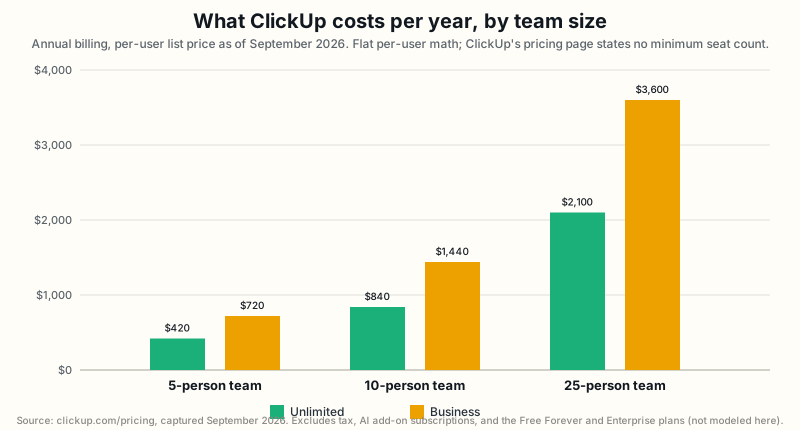
These totals are simple math: the monthly per-user price times 12 months times the number of users. Unlike the Asana and monday.com reviews on this site, neither ClickUp plan carries a confirmed seat minimum, so this math should track an actual invoice closely at any of these three team sizes. It does not include AI. A 10-person team on Business pays $1,440 a year for the core plan alone. Adding Brain AI for the whole team adds another $1,080 a year on top of that, or $3,360 a year for Everything AI instead. A buyer comparing this total against a competitor’s AI-inclusive pricing should add ClickUp’s AI add-on cost back in first, or the comparison will understate ClickUp’s real total cost for a team that wants AI features.
Strengths and weaknesses
ClickUp’s clearest strength is breadth delivered inside one product, rather than through integrations. Tasks, Docs, Whiteboards, Chat, Forms, and more than a dozen work views all live in the same navigation, confirmed directly on its own features overview. A large share of that breadth, including Whiteboards, Forms, and basic automation, is available on the free Free Forever plan, letting a small team test real workflows before paying anything. ClickUp also states no minimum paid-seat count, a genuine advantage for a very small team over a competitor with a confirmed seat-bucket floor. Import support for eight named competing tools, completing in under a minute, lowers the cost of trying ClickUp against an existing setup. A wide, independently audited security-certification set, including SOC 2 Type 2 and the ISO 27001 family, pairs with active, frequent product investment visible directly on ClickUp’s own changelog.
The same breadth creates real setup and governance costs. A new team has to learn the Workspace-Space-Folder-List-task structure, even with Folder optional, before that breadth becomes useful rather than confusing, a heavier initial investment than a flatter competitor requires. Dashboards, arguably the feature most directly tied to proving ClickUp’s reporting value, stay marked “Trial” through the entire Unlimited plan and only unlock fully on Business. Artificial intelligence is priced as a separate $9 or $28 per-user add-on, rather than bundled into a plan price. That is a meaningfully different cost structure from a competitor that already includes a fixed AI allowance in every paid tier. No accessible ClickUp source describes a documented, one-click way to export or back up an entire account, only import in the other direction. A dedicated Workload feature page could not be reached, so this article’s coverage of that specific view is thinner than its coverage of time tracking or automations. The four built-in Workspace roles and the guest-seat counts are confirmed precisely, but the exact reach of Enterprise’s Granular Space Permissions could not be, since ClickUp’s help center is blocked to automated access.
Recommendation by scenario
The right plan depends on which specific capability a team actually needs, not team size alone. Two teams the same size can land on different plans once one of them needs unlimited dashboards, heavier automation, or a confirmed identity-provider integration and the other does not. Each row below names a concrete situation, the plan that fits it best, and the reversal condition, the specific fact that would flip the recommendation to a different plan instead.
Notice how often Business shows up below. That reflects where ClickUp actually draws its most consequential line: Unlimited removes storage and Space limits, but it still marks Dashboards as a limited “Trial” and caps active automation rules at 500. A team that needs either of those two things unlocked in full has to pay for Business regardless of team size. Enterprise only appears when a requirement has no lower-tier substitute at all, such as SAML SSO with SCIM provisioning. That is a narrower, more expensive decision than the everyday choice between Free Forever, Unlimited, and Business that most buyers actually face. A buyer who only needs one capability from the Business tier should still check whether a workaround exists, such as pairing Unlimited with a separate reporting tool, before assuming Business is strictly required.
| Scenario | Recommendation | Reversal condition |
|---|---|---|
| A very small team wants to try real workflows before paying anything | Free Forever | Needing more than 5 Spaces or unrestricted time tracking pushes the team to a paid plan quickly |
| A small team wants the cheapest paid plan with unlimited storage and Spaces | Unlimited | Needing unlimited dashboards or more than 500 active automation rules pushes the team to Business |
| A team needs unlimited dashboards and heavier automation without an Enterprise quote | Business | If 1,000 monthly automation executions and a limited “Trial” dashboard are genuinely enough, Unlimited is cheaper |
| A team wants ClickUp’s AI features across the whole team | Model Brain AI or Everything AI as a separate line item on top of a core plan | Light or occasional AI use may not justify the per-user add-on cost at all |
| An organization needs custom roles, SAML SSO, and SCIM provisioning | Enterprise | If Google SSO already satisfies the company’s identity requirements, Business avoids a custom quote |
| A team needs an exact, documented guest-permission model before signing | Confirm the specifics directly with ClickUp | If the team only needs the seat counts the pricing page already states, no further confirmation is required |
| A team is migrating from Asana, Trello, Jira, or monday.com | ClickUp’s one-click import likely covers the move | A team that also needs to export its existing ClickUp data later has no confirmed bulk-export feature to rely on |
Alternatives to ClickUp
Asana is the more structured alternative reviewed on this site. It organizes work as tasks inside projects that can roll up into portfolios connected to company goals, a narrower and more opinionated model than ClickUp’s five-level Workspace-Space-Folder-List-task structure. Asana’s cheapest paid plan, Starter, includes dependencies, guest collaboration, and uncapped automation together at $10.99 a user a month billed annually, while ClickUp spreads unlimited dashboards and unlimited active automation rules across Unlimited and Business instead of granting them all on its first paid tier. Asana’s free Personal plan caps out at 2 users, a harder limit than ClickUp’s Free Forever, which states no user cap at all. The complete Asana review and the Asana versus ClickUp comparison cover this tradeoff in full.
monday.com is the more visually flexible alternative, built around boards a team designs itself rather than a task-and-project hierarchy. monday’s cheapest paid plan, Basic, costs $9 a seat a month billed annually, close to ClickUp Unlimited’s $7, but monday requires a confirmed 3-seat minimum that ClickUp’s pricing page does not state at all. monday also bundles a fixed AI tool count and credit allowance directly into every paid plan, a different structure from ClickUp’s separate $9 or $28 AI add-on. Task dependencies and native time tracking require monday’s Pro plan, two tiers above Basic, while ClickUp includes dependencies broadly and unlocks unrestricted time tracking one tier above its own free plan, on Unlimited. The complete monday.com review and the ClickUp versus monday.com comparison cover this tradeoff with full, normalized pricing at several team sizes.
A team weighing all three should treat the decision as a tradeoff between structure, flexibility, and bundled cost, rather than assuming one platform is a strict upgrade over the others. Check this site’s project management category hub for the full six-way spoke of reviews and comparisons as that research is completed.
Final recommendation
ClickUp is a strong choice for a team that wants tasks, documentation, chat, and reporting inside one product. It should be willing to invest the setup time a five-level Workspace-Space-Folder-List-task structure requires before that breadth pays off. It is a particularly strong choice for a very small team that wants real functionality, including automation and Whiteboards, on a genuinely usable free plan. The same is true for a team that values not being locked into a seat-bucket minimum the way monday.com’s pricing requires.
It is a weaker choice for a team that wants unlimited dashboards without paying for Business. It is also weaker for a team that assumes its per-seat price already includes AI features; ClickUp prices Brain AI and Everything AI as separate $9 or $28 per-user add-ons instead. It is a weaker choice, too, for a buyer that needs a fully documented permission model or a confirmed bulk-export feature before committing. ClickUp’s help center could not be checked during this review, and no accessible source confirms an account-level export. Buyers in any of those situations should read the alternatives above before committing.
Sources, methodology, and limitations
This article uses only information published by ClickUp itself, checked in September 2026. Sources include its pricing, security, integrations, changelog, developer documentation, and homepage pages. They also include feature pages for tasks, views, Docs, Whiteboards, Chat, Goals, Dashboards, Forms, Automations, time tracking, dependencies, custom fields, multiple assignees, Teams Hub, Portfolios, Brain, import, and custom task statuses. No hands-on product testing was performed. The workflow illustrations above describe how documented features could be combined; they are not observed usability, speed, or performance findings.
The developer documentation’s own glossary, rather than the homepage, turned out to be the more precise source for two central claims in this article. Those claims are the exact Workspace-Space-Folder-List-Task-Subtask hierarchy, including which level is optional, and the definitions of ClickUp’s four built-in Workspace roles. The homepage’s marketing copy no longer spells out that hierarchy by name the way it once did. This article found that by reopening the homepage directly, rather than reusing an earlier pass’s citation.
Several things could not be fully confirmed from ClickUp’s accessible public materials. First, a dedicated Workload feature page could not be reached. Two guessed page paths both returned an access error, so this article’s Workload coverage relies on a views page and one changelog reference, rather than a full mechanics description. Second, ClickUp’s help center returned an access error for every article tried during this review. The exact mechanics of Enterprise’s “Granular Space Permissions” beyond its own name, and any guest-permission detail beyond the pricing page’s seat counts, remain unconfirmed as a result. Third, no accessible ClickUp source describes a documented, one-click account export or backup feature; this is recorded as not found, not as evidence the capability is absent. Fourth, whether a custom status or custom field defined at the List level can be shared across other Lists in the same Folder or Space is not stated by any source checked in this review. All four are recorded here as unresolved rather than estimated in either direction.
This article follows the sourcing rules described on our methodology page. Every price, plan limit, and feature claim above traces back to a first-party ClickUp page dated in this article.